
Visit the Group Management page.
Team members can be added or invited to enrol in training in several ways:
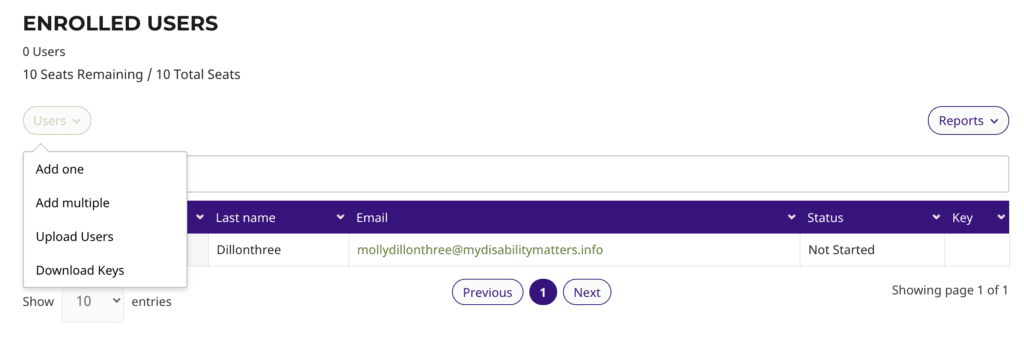
Enter details for one person at a time
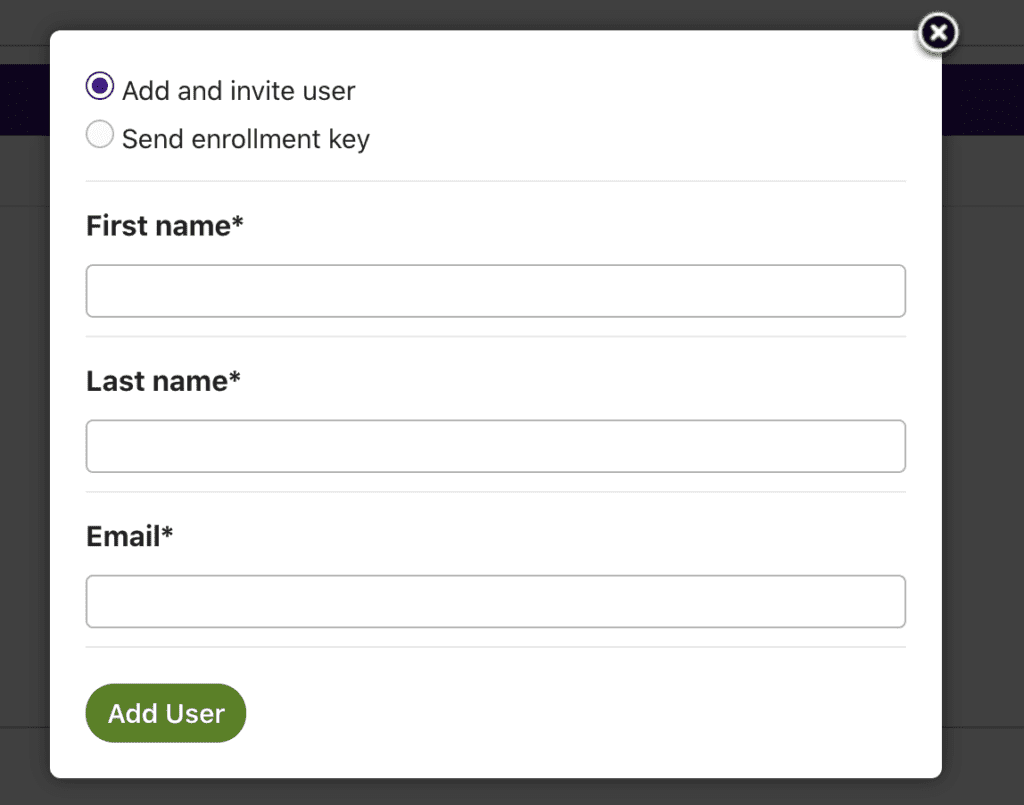
Click on Users and select Add one.
Using this option, team members are added to your group and invited by email.
An account is created for them and Travel For All will email each team member to confirm their enrolment and their login details.
To use the option of Send enrolment key, see section below on using enrolment keys.
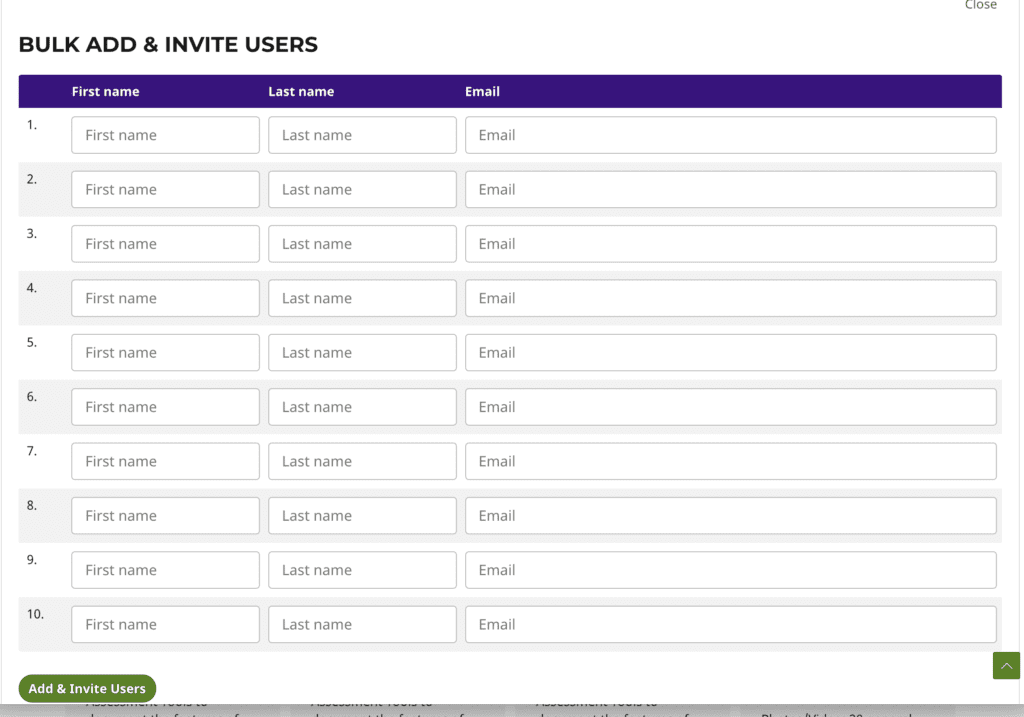
Enter details for several people into a table
Click on Users and select Add multiple.
Using this option, team members are added to your group and invited by email.
An account is created for them and Travel For All will email each team member to confirm their enrolment and their login details.
Upload details in a csv file
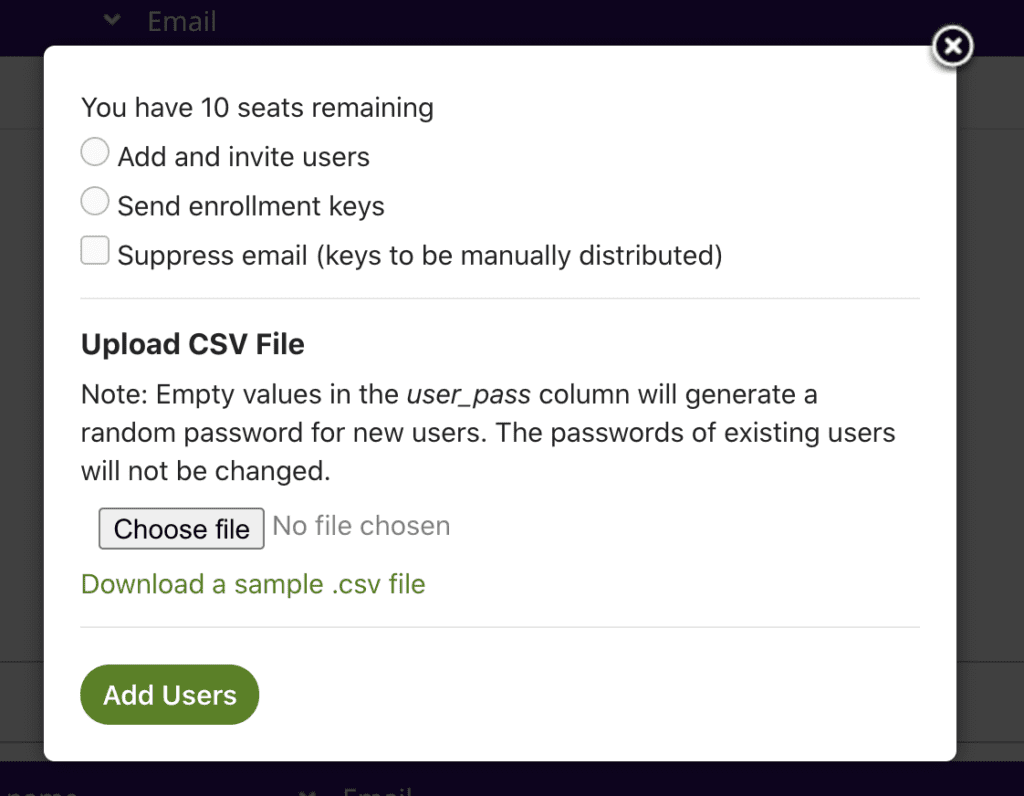
Click on Users and select Upload users.
Selecting this option will give you the pop up form shown below.
Click on the link to see the sample CSV file. Ensure that your file has the same columns and headings.
Options:
- Add and invite users: the process is then the same as for adding one or several users. An account is created for them and Travel For All will email each team member to confirm their enrolment and their login details.
- Send enrolment keys: your team members will not be automatically added to your group immediately. They will be sent the code and provided with a link to sign up to Travel For All. They will use the code to enrol in your group for training.
Download enrolment keys to distribute to team members
Click on Users and select Download keys.
Select this option to download a set of enrolment keys for your training group.
The number of enrolment keys will correspond to the number of training seats in your group.
Using Enrolment Keys
If you invite your team members via an enrolment key (8 character code), they will not be automatically added to your group immediately.
The team member will be sent the code and provided with a link to sign up to Travel For All. They will use the code to enrol in your group for training.
Custom Page for Training Enrolment
For customers on the Verified Plan or if you have purchased the White Glove Service Add-On.
You will receive an email from Travel For All with details of your custom training enrolment page. If you would like for us to add your logo and a custom image to the header, you can email those to us and the page will be updated.
Your team members then simply visit the enrolment page to sign up for training. An account will be created for them on Travel For All and they will be automatically added to your training group.