As a Group Leader, you can manage training progress from the Group Management page.
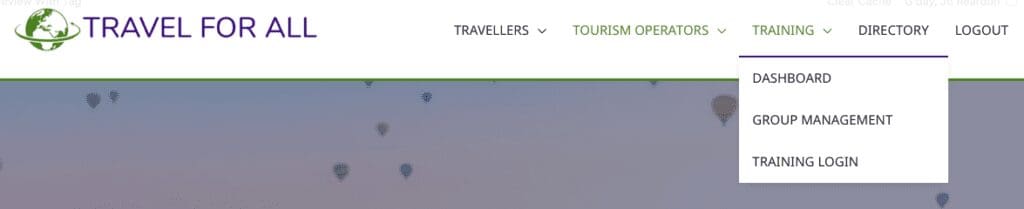
Group Management will appear in the Training menu for all group leaders.
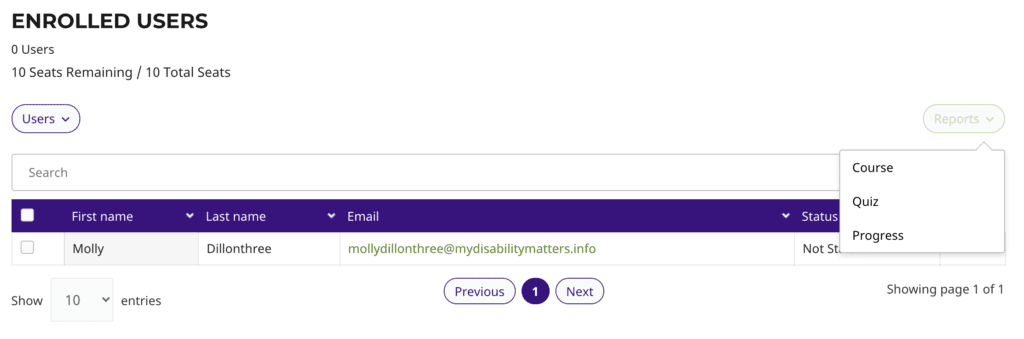
Visit the Group Management page and start from the list of enrolled users.
Group Course Report
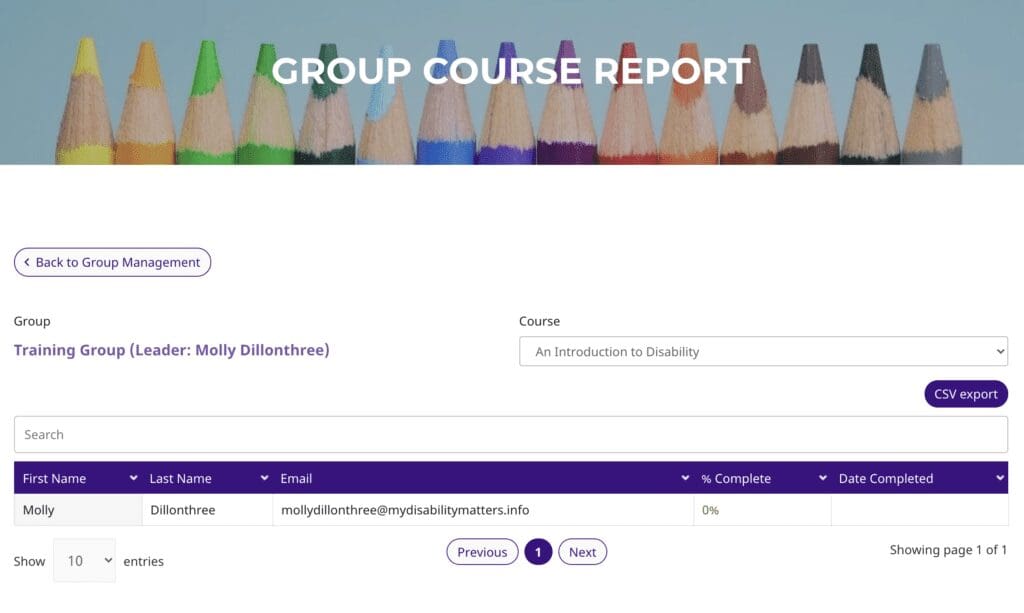
To view the Group Course Report, click on Course under the Reports menu. On the report page, select the group and then the course you would like to report on. Each report will return the identity of your enrolled users, their % complete, and the date of completion.
Group Quiz Report
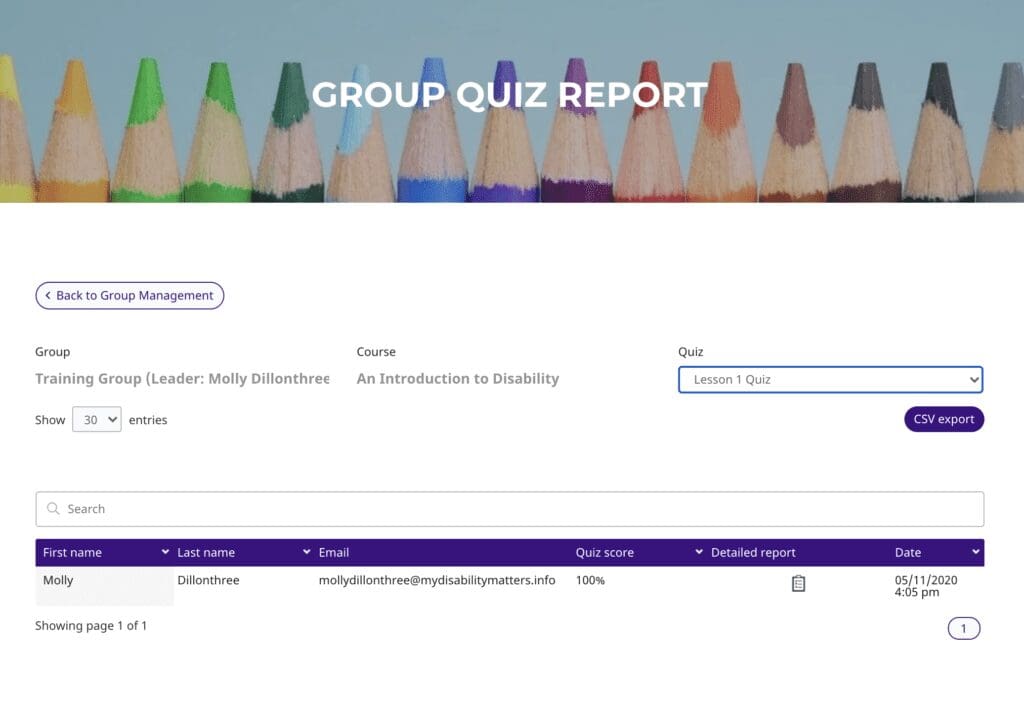
To view the Group Quiz Report, click on Quiz under the Reports menu. Select the desired group, course and quiz from the dropdowns. A table displaying all users’ results for that quiz will be displayed.
If statistics are enabled for the quiz, you’ll also see links to a detailed report for each attempt. You can also export the results to a CSV file.
Clicking the icon in the detailed report column will open a more detailed view, per user, for each question in the quiz, including their answers.
Individual Progress Report
The individual report is accessible by clicking “In Progress” on any user with progress on the main Group Management page.
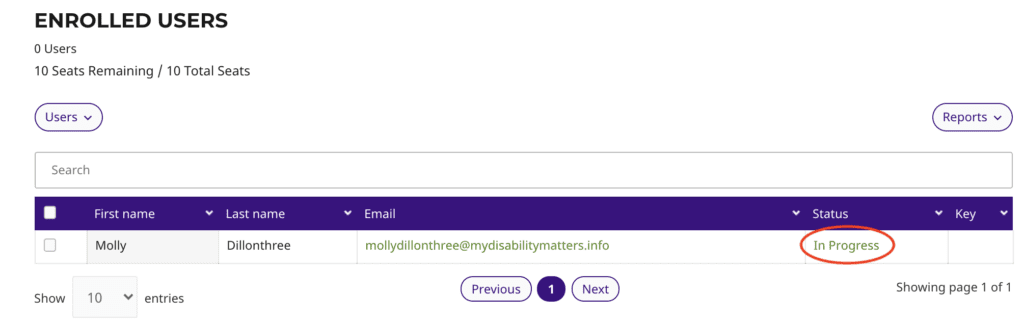
The individual reports shows an individual user’s progress across all of their courses.
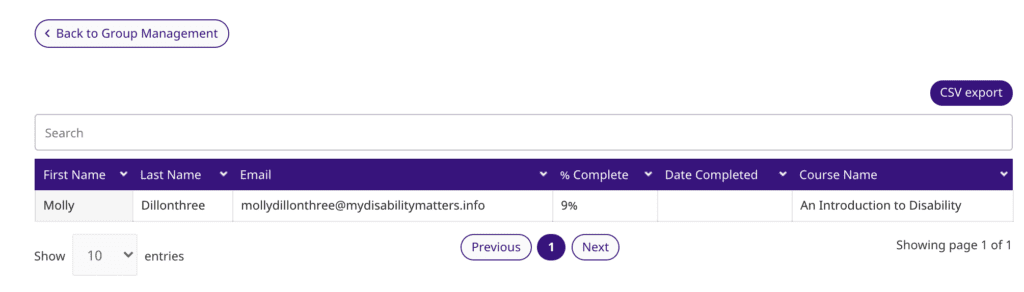
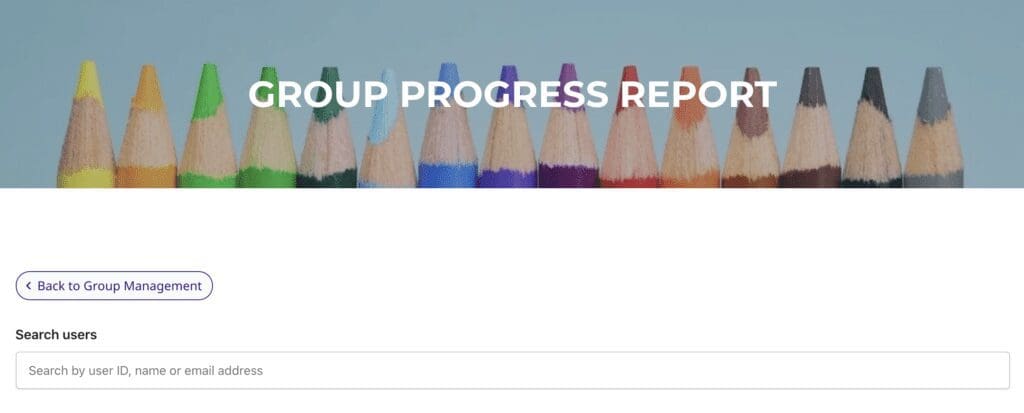
To search for an individual Progress Report, click on Progress under the Reports menu. On the report page, search for the team member.